Refer to the following instructions to restore a backup:
- Open SQL Server Management Studio; connect to the server where the backup is to be restored.
- Expand [Databases].
- Right click the database, point to [Tasks], clicks [Restore], and then click [Database].
- On the General page, the name of the restoring database appears in the [To database] list box.
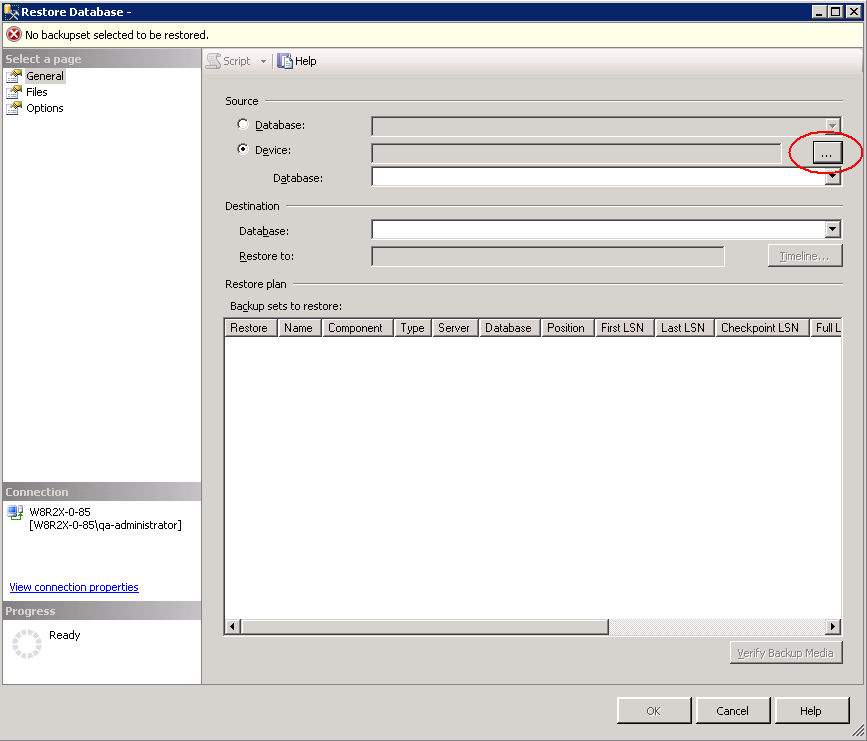
- Select Source > Device and click the browse button to open the [Select backup device] dialog box. Click [Add].
- Browse to the backup file (restored from the OBS) that is to be restored.
- After adding the complete database file and transaction log files to the [Backup media] list box, click [OK] to return to the General page.
- In the [Backup sets to restore] grid, select the backups to restore.
- To restore the backup to the last backup state click [OK] button. If you want to restore the backup to a specific time line go to the next step.
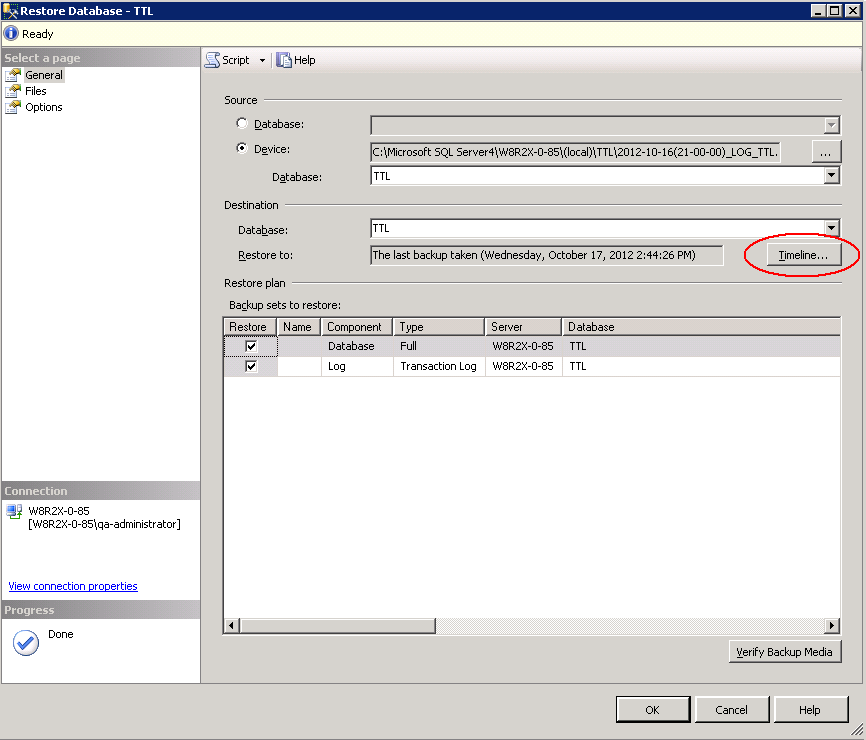
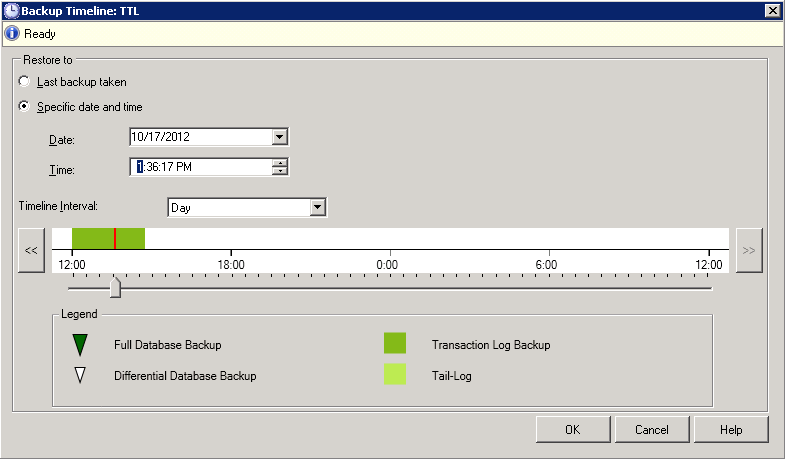
- Click on the [Timeline] button to restore the backup to a specific time line
- Choose the [Specific date and time] button, and you can select the specific time to restore. Click [OK] to confirm.
- Click [OK] to start restore, or if you need to relocate the restore files on another folder, you can go to the next option.
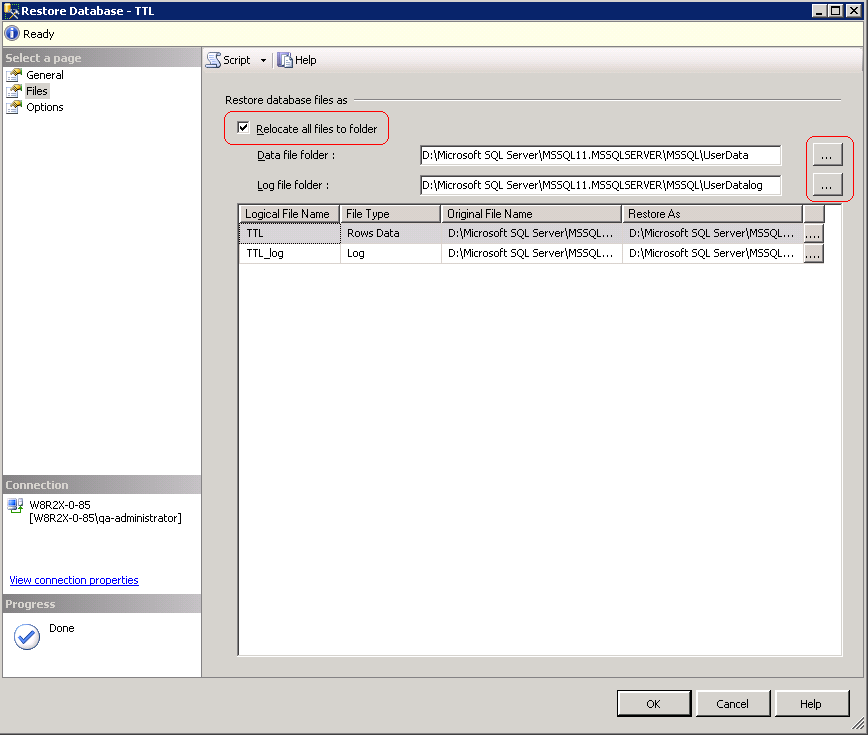
- Click on the "Files" page on the left panel.
- Click on the check box "Relocate all files to folder" and you can select the folder path by clicking the folder selection button on the right hand side.
- Choose the folder path that you need the files to relocate and click OK.
- Click [OK] on the "Files" page to start the restore. If Taillog backup restore is required, go to the next option.
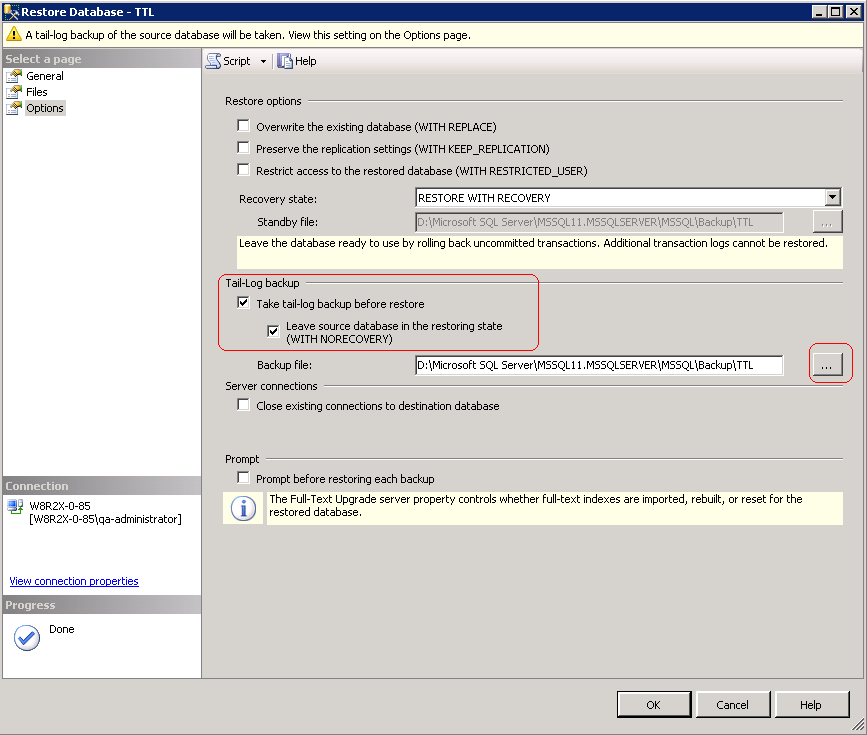
- Click on the "Option" page on the left panel.
- Click on the check box of the "Take tail-log backup before restore" option, and also select the backup file destination from the right hand side.
- Click [OK] to start the restore.
Depending on the database, either selects a user database or expands [System Databases], and then selects a system database.

Note: SQL Server databases may be backed up on one server and restored to another server.
If the target database does not exist on the server, right click on any database instead. A new database can be created while restoring the backup.

To create a new database, enter its name in the list box.

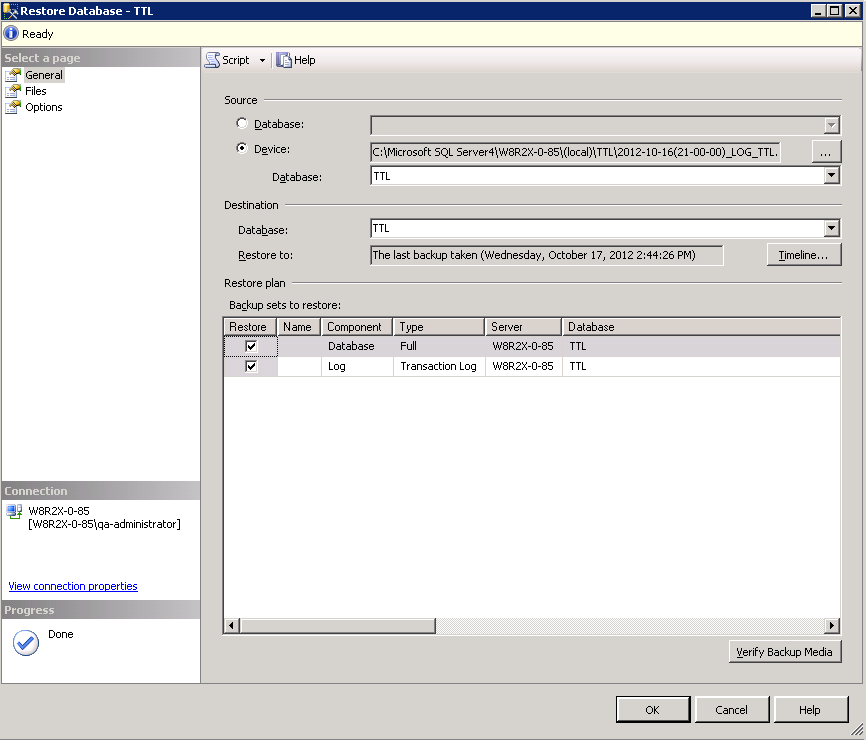
With Timeline option
With relocate all file and folder option


With Taillog backup restore option