Brick-Level backup requires "Full Mailbox Access" permission for the user running OBM. Please refer to the following instruction for granting permission to the operating system account to be running the Brick-Level backup: For one specific mailbox Use the following procedure to grant access to Exchange 2003 / 2007 mailbox:
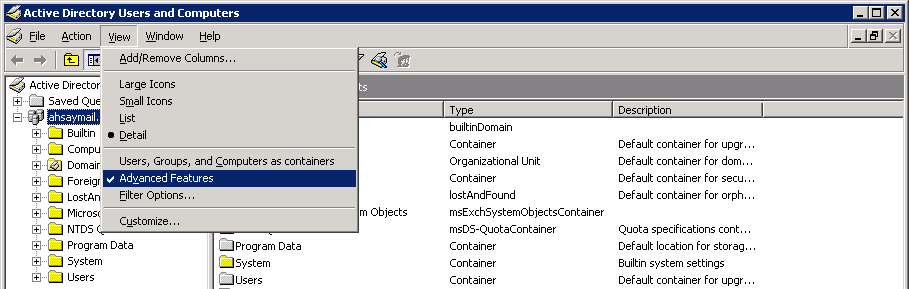
- Start the [Active Directory Users and Computers] applet.
- On the [View] menu, ensure that the [Advanced Features] option is selected.
- Right click the user whose mailbox you want to give permissions to and choose [Properties].
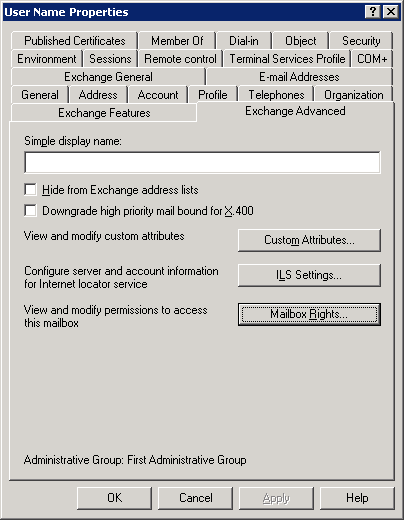
- On the [Exchange] Advanced tab, click [Mailbox Rights].
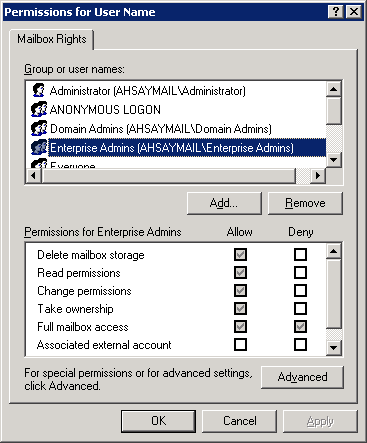
- Notice that the Domain Admins and Enterprise Admins have both been given Deny access to Full Mailbox access.
- Click [Add], click the user or group who you want to have access to this mailbox, and then click [OK].
- Ensure that the user or group is selected in the Name box.
- In the [Permissions] list, click [Allow] next to [Full Mailbox Access], and then click [OK].
- Click [OK] all the way out.
- Restart the [Microsoft Exchange Information Store] service.
For mailboxes located within a specific mailbox store
Use the following procedure to grant access to Exchange 2003 / 2007 mailbox found on a specific mail store:
- Start the [Exchange System Manager] applet.
- Navigate to the server object within the appropriate Administrative Group.
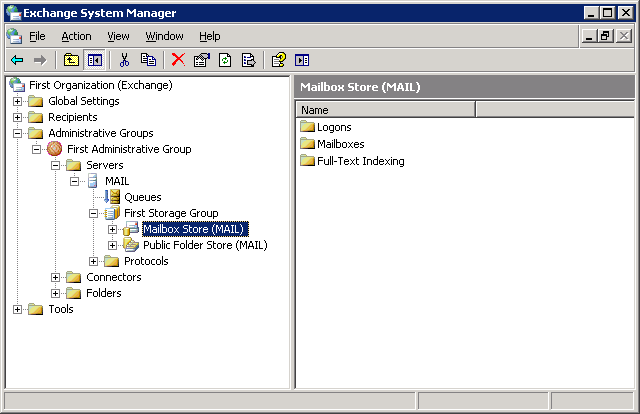
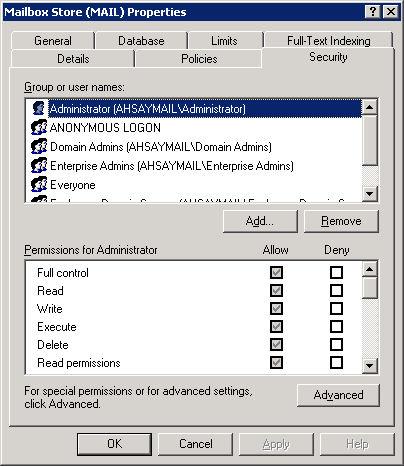
- Expand the server object and find the required mailbox store within the appropriate Storage Group. Right click it and choose [Properties].
- In the [Properties] window, go to the [Security] tab.
- Click [Add], click the user or group who you want to have access to the mailboxes, and then click [OK].
- Be sure that the user or group is selected in the Name box.
- In the [Permission] list, check [Allow] next to [Full Control], and then click [OK].
- Click [Apply] and [OK].
- Restart the [Microsoft Exchange Information Store] service.
- Add an operating system account to the Add an operating system account to the Exchange 2003 server.
- Domain Users group
- Administrators group
- Right click [Exchange System Manager] > [Domain Name] > [Server] > [Exchange Server Name], select [Properties].
- Choose the [Security] tab.
- Add the newly created user to the list, and then check the [Full Control] checkbox for this user.
- Click [OK] all the way out.
- Reboot the server or restart the [Microsoft Exchange Information Store] service, wait for at least 15 minutes for the changes to be applied to the Exchange server.
- Add an operating system account to the Add an operating system account to the Exchange 2007 server.
- Local Administrators (Built in)
- Domain Admins group
- Enterprise Admins group
- Enter the following command in Exchange Management Shell:
Get-MailboxServer | Add-ADPermission -User "%USER%" -AccessRights GenericAll -ExtendedRights ms-exch-store-admin,receive-as,send-as -InheritanceType All
Example, to grant the permission for local account "system"
Get-MailboxServer | Add-ADPermission -User "system" -AccessRights GenericAll -ExtendedRights ms-exch-store-admin,receive-as,send-as -InheritanceType All
To show added permission for an AD account
Get-MailboxServer | Get-ADPermission -User "%USER%"
Example, to show added permission for local account "system"
Get-MailboxServer | Get-ADPermission -User "system"
To remove permission from an AD account
Get-MailboxServer | Remove-ADPermission -User "%USER%" -AccessRights GenericAll -ExtendedRights ms-exch-store-admin,receive-as,send-as -InheritanceType All
Example, to remove permission from local account "system"
Get-MailboxServer | Remove-ADPermission -User "minimal" -AccessRights GenericAll -ExtendedRights ms-exch-store-admin,receive-as,send-as -InheritanceType All
- Add an operating system account to the Exchange 2010 server.
- Local Administrators (Built In)
- Organization Management group (Exchange Security Groups)
- Domain Admins group
- Enterprise Admins group
- Ensure that www.microsoft.com/download/en/details.aspx?displayLang=en&id=415 is installed.
- Enter the following command in Exchange Management Shell:
- Add an operating system account to the Exchange 2013 server.
- Local Administrators (Built In)
- Organization Management group (Exchange Security Groups)
- Domain Admins group
- Enterprise Admins group
- Enter the following command in Exchange Management Shell:
Get-Mailbox | Add-MailboxPermission -User "%USER%" -AccessRights FullAccess
Example:
Get-Mailbox | Add-MailboxPermission -User "system" -AccessRights FullAccess
Other useful commands:
Remove permission from an AD account
Get-Mailbox | Remove-MailboxPermission -User "%USER%" -AccessRights FullAccess
Example:
Get-Mailbox | Remove-MailboxPermission -User "system" -AccessRights FullAccess
To view the mailbox permission of a user
Get-Mailbox | Get-MailboxPermission -User "%USER%"
Example:
Get-Mailbox | Get-MailboxPermission -User "SYSTEM"
For mailboxes located within a specific server For Exchange 2003, please refer to the following instructions:
This account must be a member of the following groups in the Active Directory:
For Exchange 2007, please refer to the following instructions:
This account must be a member of the following groups:
For Exchange Server 2010/DAG, please refer to the following instructions:
This account must be a member of the following groups:
Get-Mailbox | Add-MailboxPermission -User "%USER%" -AccessRights FullAccess
Example:
Get-Mailbox | Add-MailboxPermission -User "system" -AccessRights FullAccess
Other useful commands:
Remove permission from an AD account
Get-Mailbox | Remove-MailboxPermission -User "%USER%" -AccessRights FullAccess
Example:
Get-Mailbox | Remove-MailboxPermission -User "system" -AccessRights FullAccess
To view the mailbox permission of a user
Get-Mailbox | Get-MailboxPermission -User "%USER%"
Example:
Get-Mailbox | Get-MailboxPermission -User "SYSTEM"
For Exchange Server 2013/DAG, please refer to the following instructions:
This account must be a member of the following groups:
For details on how to troubleshoot for issue encountered when creating a mail level backup set or during backup, please refer to Section 1.4.