This section describes in details how to backup and restore Microsoft Exchange Server with OBM.
There are three methods for restoring data:
Please ensure that the following requirements are met by the MS Exchange server:
For Exchange server 2013 with database availability group (DAG) backup option, please refer to the next section for details.
Reference: http://msdn.microsoft.com/en-us/library/exchange/aa579091%28v=exchg.140%29.aspx
For a complete Exchange server backup, backup for the following components must be performed:
Windows System State
For Exchange server with Active Directory installed, as part of the restore, the system state must also be restored. Running regular system state backups of the Exchange is therefore crucial, as it ensures that the system state data is synchronized with the Exchange database data. Microsoft Information Store (Exchange 2013) The Information Store of Exchange 2013 contains the data, data definitions, indexes, checksums, flags, and other information that comprise mailboxes in Exchange. Mailbox databases hold data that's private to an individual user and contain mailbox folders generated when a mailbox is created for that user. A mailbox database is stored as an Exchange database .edb file. Public folder databases contain the data, their definitions, indexes, checksums, flags, and other information that comprise any public folders in your Exchange organization.
In Exchange Server 2013, public folders are an optional feature.
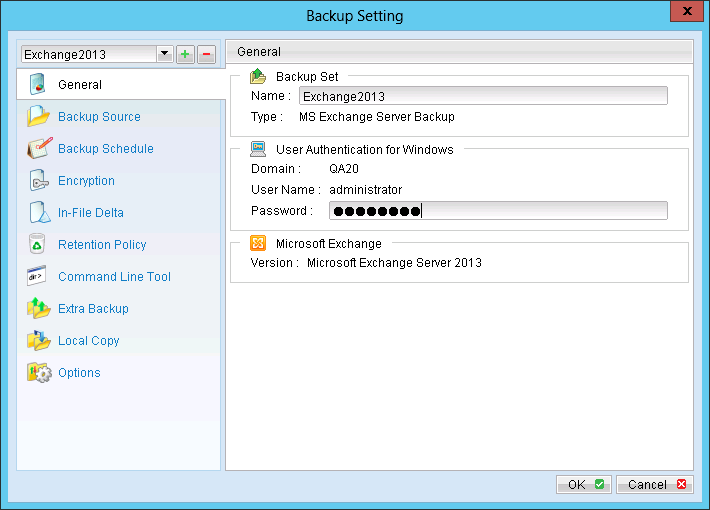
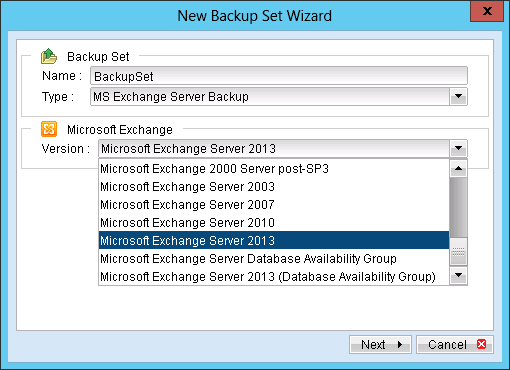
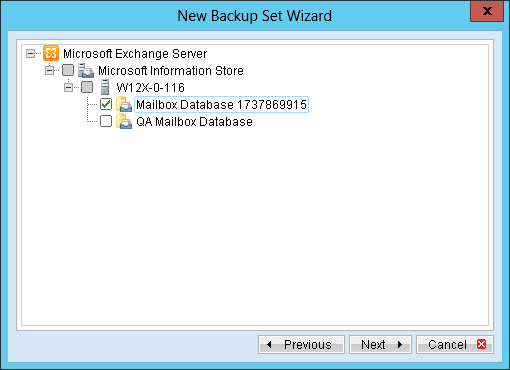
Refer to follow the instructions to backup Microsoft Exchange Server 2013:
button to start the New Backup Set Wizard.
Menu Items |
Description |
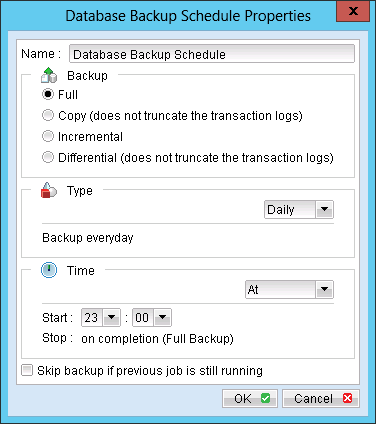
Name |
Enter a backup schedule name of your choice. |
Backup |
Select backup type [Full / Copy / Incremental / Differential]. |
Type |
Select backup schedule type [Daily / Weekly / Monthly / Custom]. |
Time |
Select backup schedule time type [At / Periodically]. Note: Select backup schedule time at to perform backup at a certain time, or select backup schedule time periodically to perform backup every X minutes / hours. |
Skip backup if previous job is still running |
Select whether to stop the backup job from running if a previous backup job is still running. |
Further details on Backup Type:
Backup Type |
Description |
Full |
Backup the databases, transaction logs, checkpoint files and then truncates the transaction logs. |
Copy |
Backup the databases, transaction logs, checkpoint files but does not truncate the transaction logs. |
Incremental |
Backup the transaction logs to record changes since the last full or incremental backup and then truncates the transaction logs. |
Differencial |
Backup the transaction logs to record changes since the last full or incremental backup and does not truncate the transaction logs. |
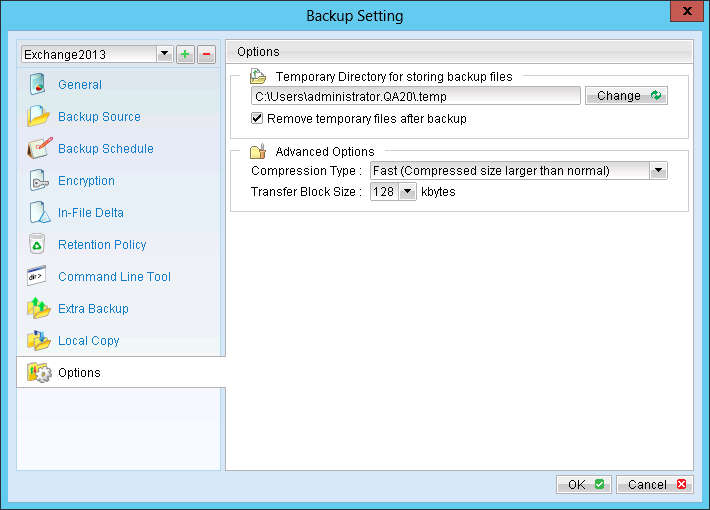
Note: The temporary directory can be set to a local or network path.
Menu Items |
Description |
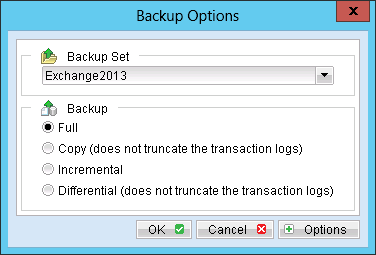
Backup |
Select backup type Select backup type [Full / Copy / Incremental / Differential]. |
Backup Type |
Description |
Full |
Backup the databases, transaction logs, checkpoint files and then truncates the transaction logs. |
Copy |
Backup the databases, transaction logs, checkpoint files but does not truncate the transaction logs. |
Incremental |
Backup the transaction logs to record changes since the last full or incremental backup and then truncates the transaction logs. |
Differential |
Backup the transaction logs to record changes since the last full or incremental backup and does not truncate the transaction logs. |
Important:
For Exchange server with Active Directory installed, a System State backup must be performed regularly with the MS Exchange server backup.